

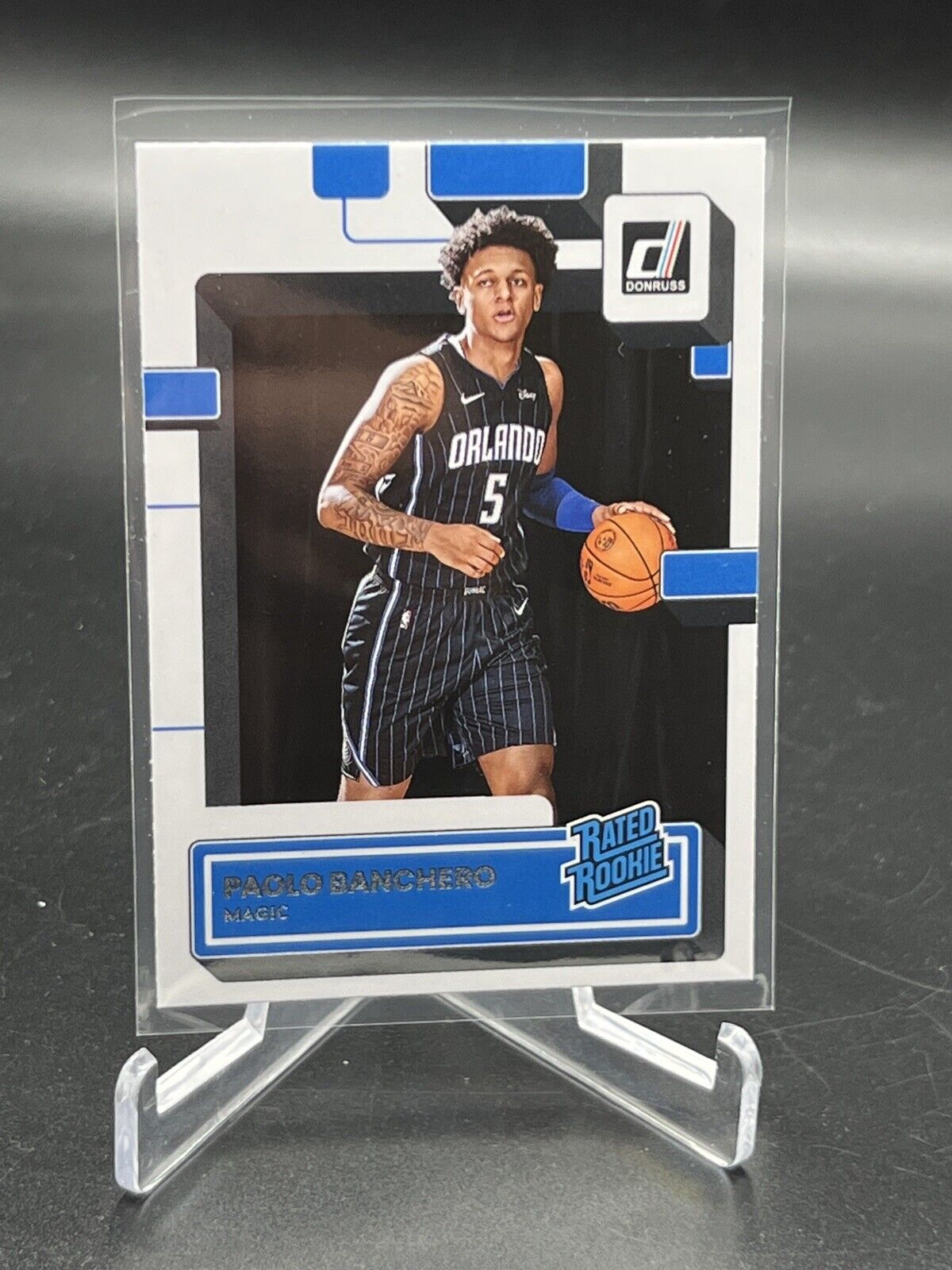
Creating custom trading cards such as baseball cards is easy and flexible using Canva. This guide walks through the full process from setting the correct card size to preparing a printable sheet for front and back designs.
Step One Set Up the Card Size
Start on the Canva homepage and select Custom size. Change the unit from pixels to inches and enter a width of 2.5 inches and a height of 3.5 inches. This is the standard size for a baseball card. If a different card type is needed simply enter the preferred dimensions.Create the new design to open a blank canvas at the correct size.
Step Two Build the Card Layout
Open the Elements tab and choose a frame. Any frame style works such as square or rounded. Place the frame on the canvas leaving some space around the edges depending on how much border you want visible.Center the frame using the alignment guides. Duplicate the frame and resize the copy to about one third smaller. Position it inside the original frame to create a layered look. Add a stroke effect to the smaller frame and choose a color such as white to separate it visually.Next add a shape from Elements to create a banner area near the bottom of the card. Adjust the size so the spacing at the bottom visually balances the top. Reduce the corner roundness for a sharper look if desired. Add a thin border to this shape to define it clearly.At this point the base card template is complete and can be reused for future designs.
Step Three Add Images and Effects
Place a background image behind the frames. Lower the brightness and apply a blur effect to help the foreground stand out. A blur value around 50 works well for most images.Add the main image again inside the center frame. Adjust positioning and scale as needed.To create a pop out effect use the background remover on the subject image. Duplicate the cut out subject. Keep one copy fully inside the frame and crop the second copy so only part of the subject extends outside the frame such as a glove or arm. Carefully align both layers so they appear seamless.Ensure that parts meant to appear behind the banner are placed correctly using the Layers panel.
Step Four Customize Colors and Text
Adjust the banner color using the color picker or manual color selection to match the image or team colors.Add text for the player name using a bold font such as Yearbook Solid. Center it within the banner. Duplicate the text to create secondary labels such as team name or position. Use contrasting colors like white with a thin outline for visibility.For team names a layered text effect works well. Duplicate the text once for a solid background and once for a hollow or outlined style. Group the layers and apply a curve effect if desired.Add a player number using a large font. Effects such as splice can add depth and contrast. Additional details like year or signature style text can be added using script fonts. Apply a subtle outline if the text overlaps light areas.
Step Five Design the Back of the Card
Duplicate the page to create the back design. Reduce the subject image opacity and place it partially off the canvas for a subtle background effect.Move the team name and number to the top or center. Remove unnecessary front elements if needed. The back can include stats school name age height weight or a game schedule depending on the audience.For younger players basic personal stats are commonly used while traditional baseball cards often include performance statistics.
Step Six Prepare a Printable Sheet
Download the front card as a single page. Then resize the back card page to a flyer portrait layout.Add a frame and manually set its width to 2.5 inches and height to 3.5 inches to match the card size exactly. Duplicate the frame until a full sheet is created. A standard layout fits nine cards per page.Upload the card front image and place it into each frame. Duplicate the page and repeat the process for the back design.For best print alignment export using PDF Print and always do a test print before using specialty paper. Gray backgrounds around the cards can help with hand cutting. These designs can also be used for magnets or craft cutting machines.
This method allows full creative control over custom trading cards using Canva. Once the base template is created it can be reused and adapted for different sports teams events or personal projects.With careful alignment and testing the final result can look professional and print ready.

Leave a Reply